This page collects annotated screenshots of the Virtuous CRM interface. Use these as a visual reference when learning how to navigate and use the system.
Editing Contacts vs. Individuals
The contact record screen has separate edit controls for the contact (the household, organization, or foundation) and the individual (the person within that contact). Understanding which edit button to click is essential for keeping data in the right place.
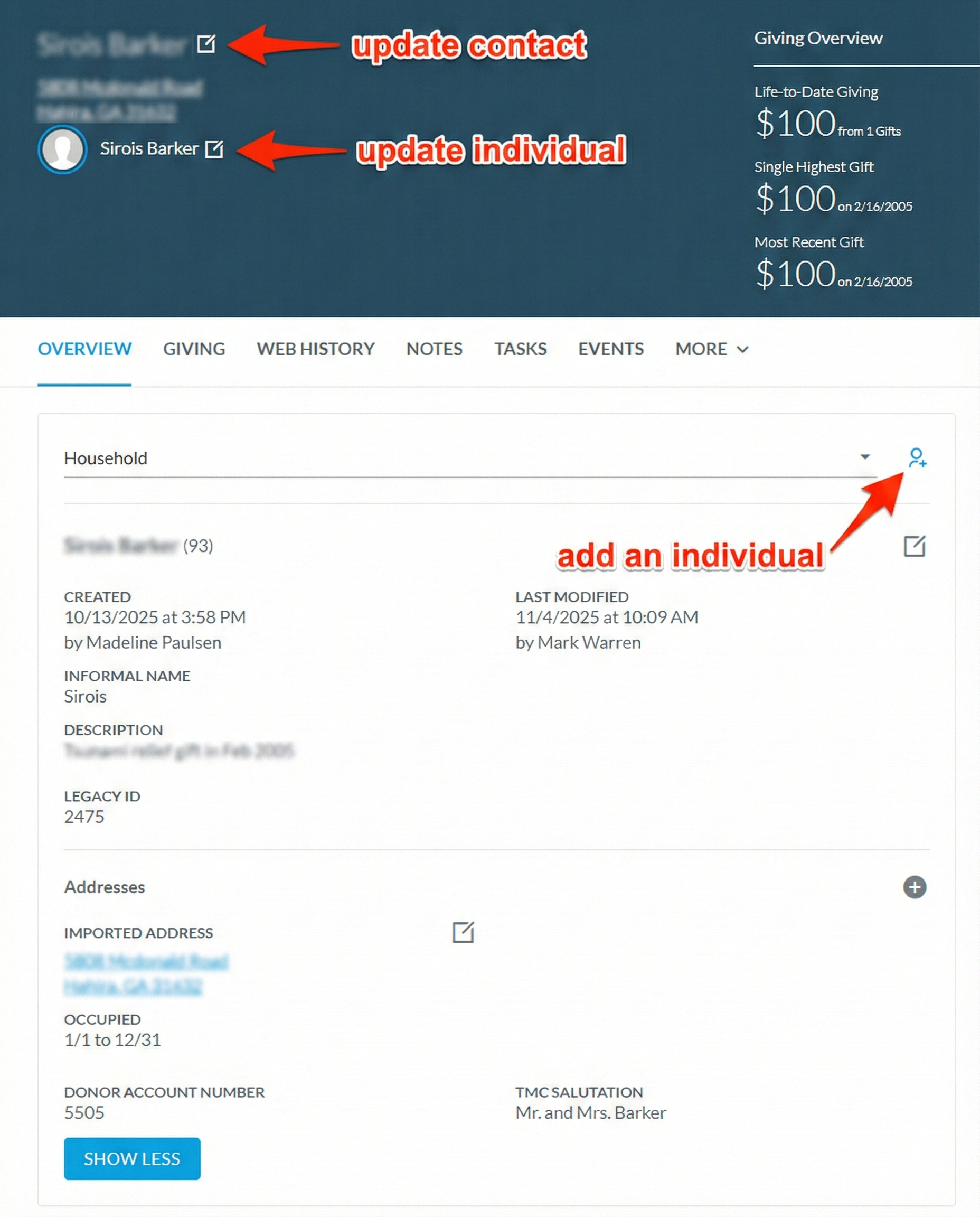
Contact Record — Edit Controls
This screenshot highlights three key actions on a contact record:
- Update Contact (top left edit icon) — Opens the contact-level fields: contact name, mailing address, tags, and other household/organization details.
- Update Individual (below the contact name, next to the person's name) — Opens the individual-level fields: email, phone, birthday, and other person-specific details.
- Add an Individual (person icon on the right) — Adds a new individual to this contact, such as a spouse to a household or an employee to an organization.
Note the TMC Salutation field visible at the bottom of the overview — this is the field used for mailings and correspondence.
For more on the distinction between contacts and individuals, see → Contacts vs. Individuals.
Where to Update Names
When you need to change a person's name on a Household contact, it matters which edit form you use. Updating the individual record automatically flows the name change into all the contact-level name fields. Updating the contact record directly does not update the individual and can cause the records to fall out of sync.
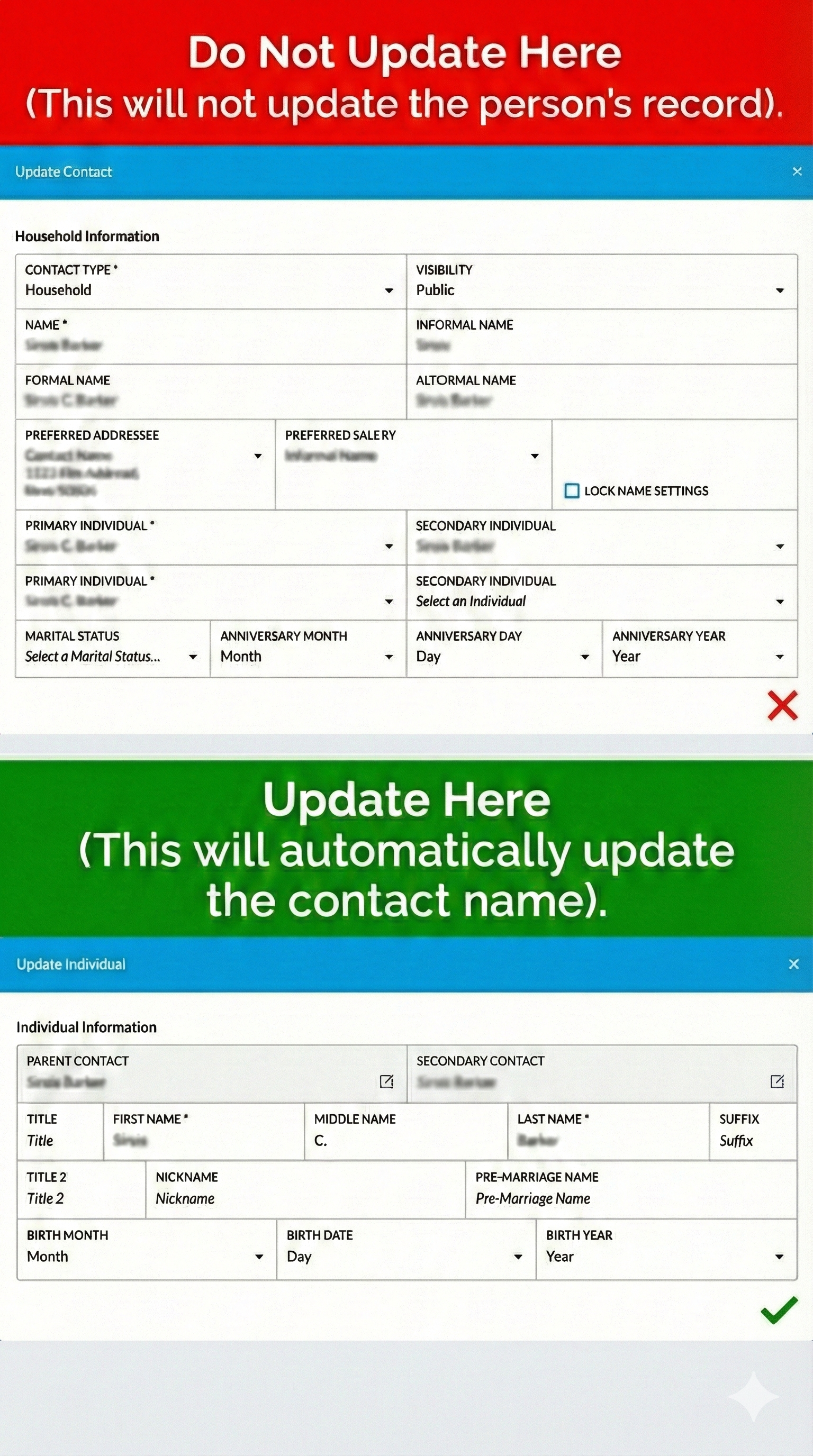
Update Individual, Not Contact
This screenshot compares the two edit forms side by side:
- Update Contact (top, red X) — Shows contact-level fields like Name, Informal Name, Formal Name, and Preferred Addressee. For households, do not edit names here directly — these are auto-generated from the individual records.
- Update Individual (bottom, green checkmark) — Shows person-level fields like Title, First Name, Middle Name, Last Name, and Suffix. Editing here automatically updates all the name variations on the contact.
Note the Lock Name Settings checkbox on the contact form — when unlocked (the default for households), Virtuous keeps the contact name in sync with the individual names.
For more on primary and secondary individuals and how they affect the contact name, see → Contacts vs. Individuals — Primary vs. Secondary.